Knowledge Base
Home » Knowledge Base
Vision-Tech AV Knowledge Hub: Your Ultimate Guide
Unlock the full potential of your audio-visual environments with “Vision-Tech’s comprehensive knowledge base, an expert resource designed to empower you with technical insights, setup guides, and practical solutions for modern collaboration.”
Collaboration Platforms & Hardware
Explore deep-dive technical resources for the industry’s leading UC (Unified Communications) hardware.
- Lenovo ThinkSmart Solutions: Configuration guides for Core, Hub, and One systems.
- Yealink Ecosystem: Deployment strategies for MVC Series, MeetingBoards, and peripheral management.
- Neat Video Integration: Getting Started Initial setup for Neat Bar, Neat Pad, and Neat Board.
- Optimisation: Utilising Neat Sense and Symmetry for superior meeting equity.
- Neat for Microsoft Teams: Best practices for Neat devices running native MTR firmware.
Connectivity & Signal Management (Lightware Taurus)
Master the “brain” of the modern meeting room with dedicated support for Lightware’s UCX technology.
- Taurus UCX Series: Understanding USB-C universal switching and peripheral sharing.
- BYOM (Bring Your Own Meeting): How to enable seamless host-switching for laptops.
- Advanced Routing: Configuring video, audio, and USB data across complex signal paths.
Advanced Audio & Intelligent Video
Technical documentation for high-performance peripherals from Biamp and Huddly.
- Biamp Audio Excellence:
- Integrating Tesira and Devio DSPs into collaboration spaces.
- Microphone array calibration (Ceiling vs. Table) for crystal-clear voice lift.
- Huddly AI Cameras:
- Setting up Huddly IQ, S1, and L1 for intelligent framing.
- Firmware management and Huddly Crew multi-camera orchestration.
Pro AV Fundamentals & Troubleshooting
Essential knowledge for maintaining system uptime and optimizing user experience.
- Signal Standards: Understanding HDMI, HDCP, and USB 3.1 bandwidth requirements.
- Network Foundations: AV-over-IP, Dante audio networking, and PoE+ power management.
- Universal Troubleshooting: Step-by-step checklists for "No Signal," "Audio Echo," and "Device Offline" errors.
Collaboration Hardware Guide (Lenovo & Yealink)
This guide covers the deployment essentials for our two primary MTR compute partners: Lenovo and Yealink. Whether you are deploying a Lenovo ThinkSmart Core or a Yealink MVC system, the goal is a stable, consistent room experience.
Lenovo ThinkSmart Deployment
- ThinkSmart Core & Controller: ThinkSmart Core & Controller Ensure the Compute Unit is mounted securely behind the display or under the table with adequate ventilation.
- Initial Setup: Connect the Controller via USB-C. Upon first boot, you will need to log in to the local Windows IoT account (Default Admin/User) to configure network settings before sign in to the Teams Room app.
- ThinkSmart Manager: We recommend claiming all devices in the Lenovo ThinkSmart Manager portal immediately for remote BIOS updates and status monitoring.
Yealink MVC & MeetingBar Series
- MVC Connectivity: The MTouch II panel connects via a single CAT5e cable to the MCore, simplifying cable management. Ensure the cable is not bent beyond its bend radius.
- Yealink RoomConnect: Use the pre-installed RoomConnect software to adjust camera PTZ settings and manage plug-ins for peripherals (like the WPP20 wireless dongle).
- Firmware Management: Always check Yealink Management Cloud Service (YMCS) or the device's web UI to ensure the MCU and touch panel firmware are matched.
Expanded Troubleshooting Guide
Lenovo ThinkSmart Issues
- Touch Controller Disconnected:
- Symptom: The ThinkSmart Controller display is black or shows a "Not Connected" error.
- Fix: Check the USB-C cable seating at the Compute end (often loosens if not secured).
- Fix: Reboot the Compute unit. If the issue persists, try a different USB- C cable to rule out cable failure.
- System Sluggishness/Lag:
- Symptom: The MTR interface is slow to respond to touches.
- Fix: Check Task Manager (requires keyboard/mouse) for high CPU usage. Often caused by Windows Updates running in the background. Schedule updates for off-hours in Intune/GPO.
- Login Loops:
- Symptom: The system keeps asking for MTR credentials.
- Fix: Verify the room account password hasn't expired. Check that the device has internet access and can reach Microsoft 365 authentication servers (firewall check).
Yealink MVC Issues
- UVC Camera Not Waking Up:
- Symptom: Camera shows a black screen after the system wakes from sleep.
- Fix: Disable "USB Selective Suspend" in Windows Power Settings.
- Fix: Ensure the UVC camera firmware is matches the MCore firmware via Yealink RoomConnect.
- MTouch II "No Signal":
- Symptom: The touch panel shows "No Signal" but the TV shows the MTR interface.
- Fix: This is usually a cabling issue. Re-terminate the CAT5e cable connecting the MCore to the MTouch II. Ensure you are using the VCH port, not a standard LAN port.
- Wireless Content Sharing Fails (WPP20):
- Symptom: Dongle plugged in but not sharing.
- Fix: The WPP20 firmware might be out of sync with the MVC system. Plug the WPP20 directly into the MVC Compute USB port to pair and update it.
Neat Devices for Microsoft Teams
Neat devices offer a streamlined, appliance-based approach to Microsoft Teams Rooms. This guide covers setting up the Neat Bar, Bar Pro, or Board specifically for the Teams ecosystem.
Initial Setup & Pairing
- OOBE (Out of Box Experience): Connect the Neat Bar to power and network (PoE+ preferred). Connect the Neat Pad to the same subnet.
- Platform Selection: During the initial boot wizard, select "Microsoft Teams" as your platform. The device will download the specific Teams firmware package.
- Pairing: Follow the on-screen code to pair the Pad with the Bar.
Optimizing Video & Audio
- Neat Symmetry: In the system settings, enable Symmetry to allow the camera to split individual participants into their own video frames, enhancing meeting equity.
- Microphone Arrays: Neat devices use an end-fire array. Ensure there are no physical obstructions (like soundbars or decorations) directly in front of the device.
Expanded Troubleshooting Guide
Yealink MVC Issues
- Neat Pad Won't Pair with Bar:
- Symptom: Pad says "Searching for Device..." indefinitely.
- Fix: Ensure both devices are on the exact same subnet. Multicast DNS (mDNS) must be enabled on the network for discovery.
- Fix: If using separate VLANs, ensure routing allows traffic on port 443 and 8443 between the devices.
- "Not Signed In" Error:
- Symptom: Device boots but fails to sign into Teams.
- Fix: Check time and date settings. If the device clock has drifted significantly from the NTP server, authentication will fail.
- Fix: Verify an Intune Android Device Administrator policy is not blocking the device enrollment.
Audio/Video Quality
- Echo on Remote End:
- Symptom: Remote participants hear themselves.
- Fix: Double-check physical placement. The Neat device should be flush with the display front edge. If recessed, audio can bounce off the cabinet/alcove.
- Fix: Ensure "Music Mode" is OFF in Teams settings unless specifically required, as it disables some echo cancellation.
- People Count Inaccurate:
- Symptom: Neat Sense data shows wrong room occupancy.
- Fix: Recalibrate the camera boundary in System Settings. Ensure glass walls are marked so the camera doesn't count people walking by in the corridor.
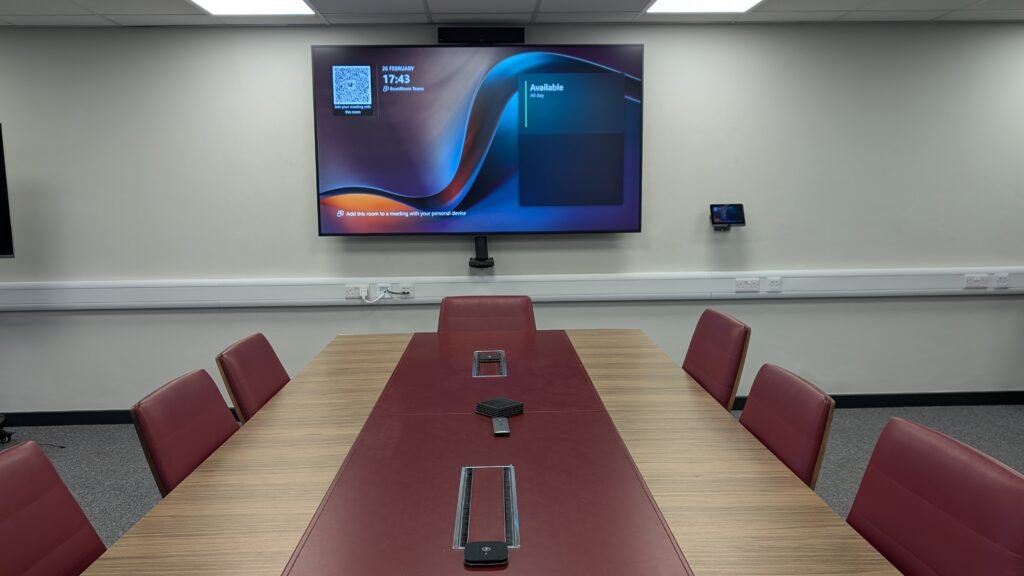
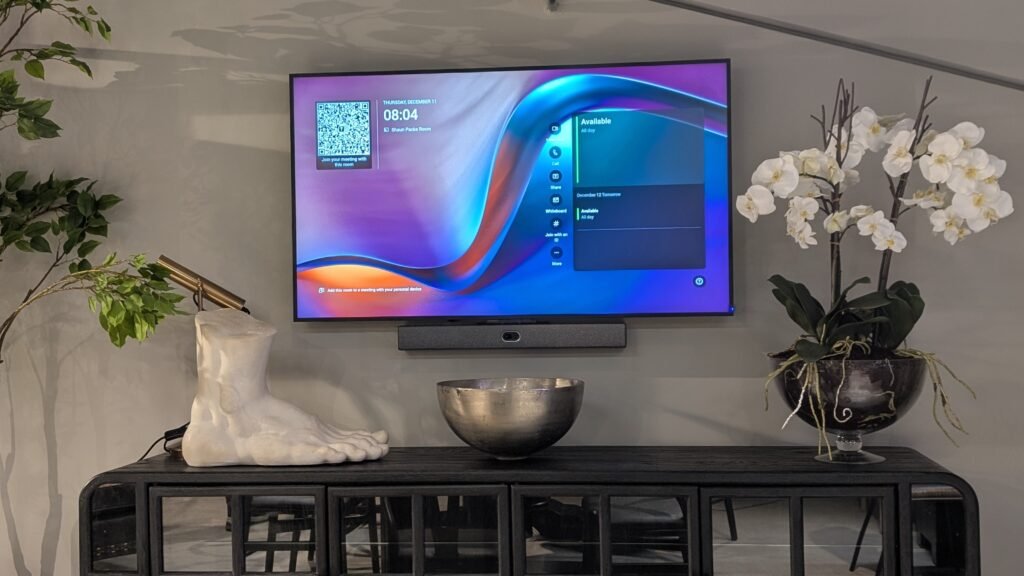
The Lightware Taurus UCX is the “brain” of the modern hybrid room, allowing users to switch not just video, but USB peripherals (cameras/mics) between a dedicated Room PC and a user’s laptop (BYOM).
Initial Setup & Pairing
- Room PC: Connect the MTR Compute to the HDMI Input and the USB-B Host port.
- Peripherals: Connect your Camera, Audio DSP (Biamp), and Touch Screen to the USB-A device ports on the Taurus.
- BYOD/BYOM: Users connect via the USB-C port on the front/table interface. This cable carries Video, USB Data, and Charging.
Configuring Auto-Switching
- Lightware Device Controller (LDC): Download the LDC software to configure the unit.
- Priority Mode: Set the USB-C input as "Priority 1" and the Room PC (HDMI/USB-B) as "Priority 2."
- Behaviour: When a user plugs in a laptop, the Lightware automatically routes the Camera and Audio to the laptop. When they unplug it, control automatically returns to the MTR system.
Expanded Troubleshooting Guide
USB-C & BYOM Issues
- Laptop Charging but No Video:
- Symptom: User plugs in, battery charges, but room display is black.
- Fix: The laptop USB-C port may not support "DisplayPort Alt Mode." Test with a known working laptop (e.g., MacBook or Dell XPS).
- Fix: Cable length is critical. If the USB-C cable is over 1 m and passive, video will drop. Replace with a certified Active USB-C cable (up to 3m/5m).
- USB Peripherals Keep Disconnecting:
- Symptom: Camera/Mic cuts in and out during a BYOM call.
- Fix: Check the power draw. If you have a high-draw camera and speakerphone connected to the Taurus without external power, the USB bus might be overloaded. Use a powered USB hub if necessary.
Switching Logic
- Stuck on "Waiting for Signal":
- Symptom: Auto-switching fails to switch back to the MTR PC when the laptop is unplugged.
- Fix: Check the "Autoselect" settings in LDC. Ensure the MTR input (HDMI) is set to a lower priority (e.g., P2) but is marked as "Enabled."
- Fix: Verify the "5V Detect" setting on the input. Sometimes the MTR PC doesn't drop the 5V signal even when asleep, tricking the switcher. Adjust the signal detection threshold.
Advanced Audio & Video (Biamp & Huddly)
Configuring Auto-Switching
- Biamp Audio Ecosystem: We typically use Biamp TesiraFORTÉ or Devio SCX processors. These handle Acoustic Echo Cancellation (AEC) and noise reduction.
- MTR Setup: Ensure the Biamp USB interface is selected as the default recording and playback device in the Windows/MTR settings.
- Audio Tuning: Utilise the "Biamp Launch" feature (on supported devices) for automated room tuning, or manually adjust gain structures to ensure remote participants hear clear audio without clipping.
Huddly Intelligent Cameras
- Huddly IQ vs. L1/S1:
- IQ: Best for huddle/small rooms (150° FOV).
- L1/S1: Networked AI cameras designed for medium-to-large rooms.
- Genius Framing: Ensure this feature is enabled in the Huddly App. It detects people and zooms in automatically to frame the group.
- Connection: Huddly cameras require significant power. Always use the provided USB 3.0 cable and, if applicable, the external power injector.
Expanded Troubleshooting Guide
Biamp Audio Issues
- Robotic/Distorted Audio:
- Symptom: Voice sounds metallic or choppy.
- Fix: Check for clock sync issues. If using Dante, ensure there is only one "Master Clock" on the network.
- Fix: USB Buffer sizing. In the Biamp software, adjust the USB transmit/receive buffer size if the PC is struggling to process the stream in time.
- Mute Sync Failure:
- Symptom: Pressing mute on the table mic doesn't change the status in Teams (or vice versa).
- Fix: Ensure "HID Telephony" is enabled on the Biamp USB output block.
- Fix: Re-upload the configuration file to the DSP; sometimes the HID control logic freezes.
Huddly Camera Issues
- Camera Flickering:
- Symptom: Video image flickers or has lines.
- Fix: This is almost always a power issue (50Hz/60Hz mismatch). In the Huddly App, set the "Anti-Flicker" setting to match your region's power frequency (50Hz for UK/Europe, 60Hz for US).
- Genius Framing "Hunting":
- Symptom: The camera keeps zooming in and out unnecessarily.
- Fix: Lighting conditions are likely poor (backlighting). Adjust room blinds or lights so the subject is brighter than the background.
- Fix: Reduce the "Framing Sensitivity" in the Huddly App settings.
Pro AV Fundamentals
Understanding HDCP
- What is it? High-bandwidth Digital Content Protection prevents piracy but often blocks legitimate content in AV systems.
- The Golden Rule: Never daisy-chain too many devices. If you see a "Snowy" screen or a green flash, it is likely an HDCP handshake failure. Check that your switcher (Lightware) and display both support the same HDCP version (1.4 or 2.2).
AV Over IP & Network Requirements
- Separation: We recommend keeping AV traffic (Dante audio, Video over IP) on a separate VLAN from corporate data traffic to ensure Quality of Service (QoS).
- PoE (Power over Ethernet): Many devices (Neat Pads, Biamp mics) run on PoE. Ensure your network switch has a sufficient power budget (PoE vs PoE+) to drive all connected devices simultaneously.
Expanded Troubleshooting Guide
Signal & HDCP
- Green Screen / Purple Tint:
- Symptom: The image is visible but colours are inverted or the screen is solid green.
- Fix: This is caused by a color space mismatch (RGB vs. YUV). Force the source device output to “RGB” or “4:4:4” instead of “Auto.”
- Fix: HDCP Handshake error. Unplug the HDMI cable at both ends and reconnect to force a new handshake.
- Snow / Static:
- Symptom: White noise on the display.
- Fix: The HDMI cable bandwidth is insufficient for the signal (e.g., trying to push 4K60Hz down a 1.4 cable). Replace with a Premium High Speed (18Gbps) HDMI cable.
Network AV
- Device Keeps Rebooting (PoE):
- Symptom: Touch panels or cameras boot up, run for a minute, then restart.
- Fix: PoE budget exceeded. Check the network switch logs. If the switch can only provide 15.4W (PoE) but the device needs 30W (PoE+), it will crash when it tries to draw full power. Move to a PoE+ switch or use an injector.
- Cannot Discover Device on Network:
- Symptom: Software (like Biamp SageVue or Huddly App) cannot find the device.
- Fix: Check PC IP settings. Ensure your laptop is in the same IP range/subnet as the AV equipment.
- Fix: Windows Firewall. Temporarily disable the firewall to see if it's blocking the discovery broadcast packets.
Our Services
Request a Quote
Get in Touch with Us
Call us at any time
Drop Us an Email
Location
SA18 1NE Ammanford, United Kingdom
Opening Hours
Mon - Fri: 09:00 - 17:30
Follow us:
Start Your AV Design Journey With Us
Whether you are planning a new audio-visual installation or upgrading an existing system, our expert AV design consultants are here to help. We work closely with you to understand your space, objectives, and technical requirements, delivering a tailored and future-ready AV design solution that performs seamlessly.
Get in touch with our team today to discuss your project in detail. Contact us online or call directly to speak with an AV specialist and take the first step toward a smarter, more efficient audio-visual system.
- Testimonial
What Our Clients Say About Us
Trustindex verifies that the original source of the review is Google. Had some extensive work done to revamp the AV at the company. Vision Tech have extensive knowledge of the market and were able to spec suitable systems to fit the purpose and the budget.The quality of their installation work is second to none. A local company that is highly recommended.Posted on GoogleTrustindex verifies that the original source of the review is Google. Used these guys for a number of large and complex AV installation jobs. Exceptional service and high quality workmanship. Regardless of chaotic sites and last minute changes, we trust them to get it done. Highly recommended.Posted on GoogleTrustindex verifies that the original source of the review is Google. Great company! Good attention to detail! Would thoroughly recommend!